Zapier Integration for Construction Software
Connect Projul to thousands of apps with Zapier. Bring leads in automatically and send your Projul work out to the tools you already use.
- Bring leads into Projul from your website, Facebook, and Google Forms
- Send Projul tasks to Google Calendar and updates to your other apps
- Set it up in minutes with a Projul AI Connect key
Connect Projul to Thousands of Apps With Zapier
Projul’s Zapier integration connects Projul to the other apps you use, so information moves on its own instead of being typed twice. It works in both directions. Leads from your website or Facebook ads land in Projul automatically, and the tasks, clients, and estimates you create in Projul can show up in your calendar, your inbox, or anywhere else Zapier reaches.
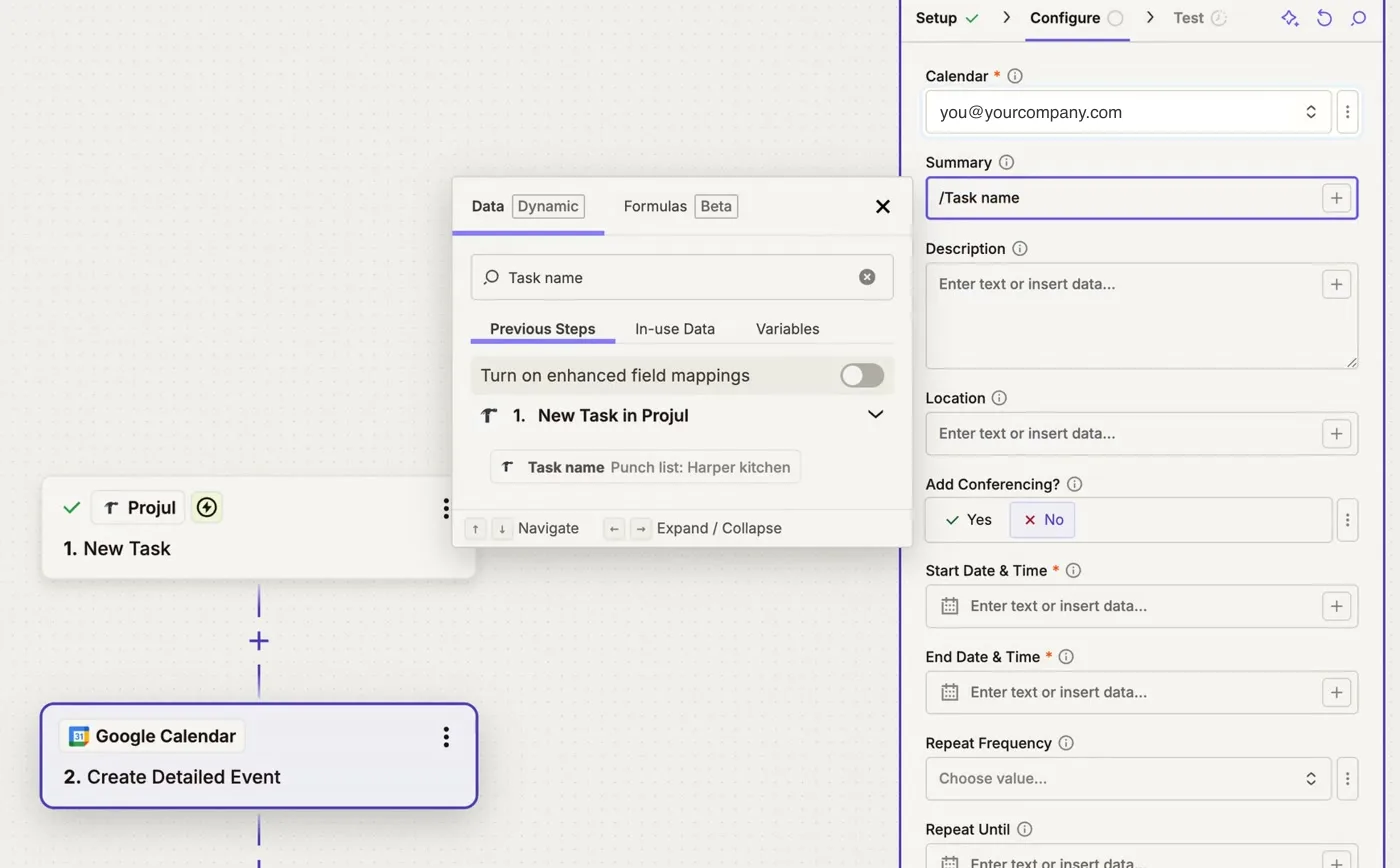
Zapier connects through Projul AI Connect, the same secure key that lets AI assistants like ChatGPT and Claude work in Projul.
What You Can Automate
From Projul to your other apps
- New lead → text or Slack your salesperson right away
- New task → add it to Google Calendar
- Task rescheduled or completed → keep your calendar and team up to date
- Estimate accepted → post it in your team channel and start your kickoff steps
- Lead converts to a job → start onboarding in your other tools
- New client → add them to Mailchimp or Google Contacts
From your other apps into Projul
- Website form, Facebook lead ad, or Google Form → new lead in Projul
- Email to your shared inbox → new lead, or a note on the right project
- Calendar event → scheduled task in Projul
- New spreadsheet row → client or project in Projul, matched so you don’t get duplicates
- Approved request in another tool → draft estimate from your template
These are a few examples. Projul’s Zapier triggers and actions pair with thousands of apps, and the full list is below the setup steps. If there’s a workflow you’d like to automate, let us know.
Nothing Goes to a Client Without Your OK
Projul’s Zapier actions can’t send an estimate to a client. Estimates built through Zapier are drafts, and a person on your team reviews and sends them. Totals, taxes, and markups are calculated by Projul from your pricing.
Your Projul AI Connect key only works for your company’s account. Only owners and admins can create one, and you can turn a key off at any time.
How to Set Up Projul’s Zapier Integration
Setting up a Zap with Projul takes about 10 minutes:
- In Projul, click your initials at the bottom of the sidebar. Under Pro features, turn on Projul AI Connect if it isn’t on already.
- Open Settings and choose Projul AI Connect. Create a key with Read-Write access, confirm your password, and copy the key.
- In Zapier, create a new Zap and choose Projul as your trigger or action app.
- When Zapier asks you to connect your Projul account, paste your key. One key works for all your Zaps.
- Pick the other app, map the fields, and test the Zap.
- Publish the Zap. From then on, it runs on its own.
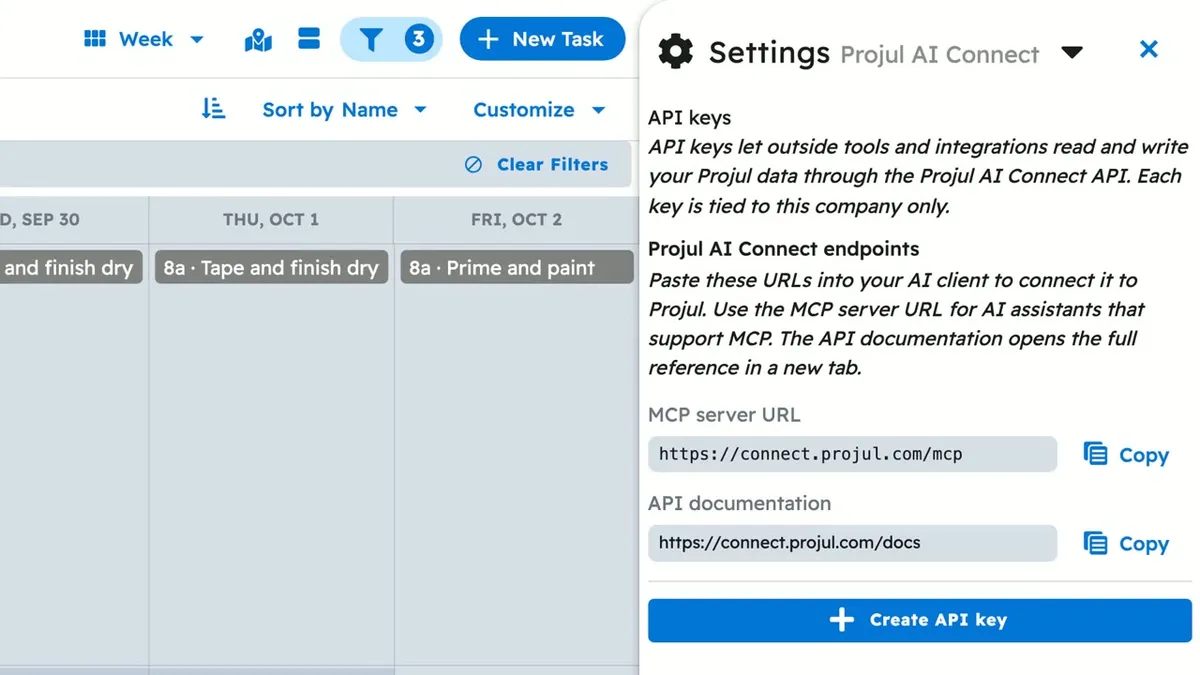
Step-by-step guides are in the Help Center. The video shows the full setup for sending Projul tasks to Google Calendar.
Every Projul Trigger, Action, and Search
Triggers (10)
- New Lead Starts a Zap when: A new lead is added to Projul.
- Lead Converted to Job Starts a Zap when: A lead becomes won work.
- New Project Starts a Zap when: Any project is created, including leads.
- New Client Starts a Zap when: A new client is added.
- Client Updated Starts a Zap when: A client's name, address, or contact details change.
- New Estimate Starts a Zap when: Someone on your team creates an estimate.
- Estimate Accepted Starts a Zap when: A client accepts an estimate, in Projul or on their portal link.
- New Task Starts a Zap when: A task is created in Projul, on the web or the mobile app.
- Task Updated Starts a Zap when: A task is rescheduled, reassigned, renamed, or completed.
- New Message Starts a Zap when: A message is posted on a project, task, client, or estimate.
Actions (11)
- Create Lead Adds a lead to your sales pipeline and links the client, without duplicating one you already have.
- Create Client Adds a client, or links to the matching client you already have.
- Update Client Changes only the fields you fill in, and leaves the rest alone.
- Archive Client Moves a client out of your active list. You can restore them in Projul.
- Create Project Creates a project for an existing client, or creates the client with it.
- Update Project Changes only the fields you fill in. Moving a lead out of the lead stages marks it won.
- Schedule Task Creates a task and puts it on the schedule, straight from a calendar event.
- Create or Update Task Keeps calendar sync clean: when an event moves, the same Projul task is updated instead of duplicated.
- Complete Task Marks a task complete, or reopens it.
- Add Message Posts an internal note on a project, task, client, or estimate.
- Create Estimate From Template Builds a draft estimate from one of your templates, ready for your team to review and send.
Searches (4)
- Find Client Finds a client by name, email, client number, or your own reference. Also available as Find or Create Client.
- Find Project Finds a project by project number, or the latest one for a client, stage, or status. Finds leads too. Also available as Find or Create Project.
- Find Task Finds a task by project, assignee, type, status, or scheduled date range.
- Find Estimate Finds the latest estimate for a project, client, or status.