Construction To-Do Lists Your Crew Checks Off From the Field
Give every job a clear plan. Assign tasks to your crew, add the steps that need to get done, and watch progress update as they check them off.
- Break every task into steps, from install checklists to punch lists
- Turn estimate labor into tasks, and clock in right from the task
- A real mobile app that keeps working with no signal
A Clear Plan for Every Job
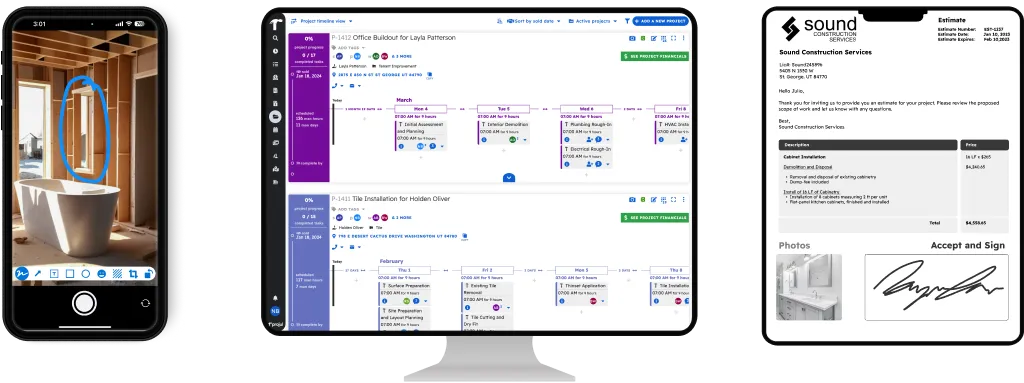
Projul’s tasks and to-dos turn each job into work your crew can see and check off. A task is a piece of work on the schedule, like framing or cabinet install. Steps are the to-do list inside it. Your crew checks off steps from their phone, and the office sees progress without a phone call. For example, an “Install kitchen cabinets” task might have steps to verify the delivery, hang the uppers, set the bases, and install hardware.
Think of a task as an internal work order your crew carries on their phone: the scope, the job address, who’s assigned, when, the steps to follow, and the photos and files they need.
More Than a To-Do List
- Build the schedule from your estimate. Once a job is sold, export the labor from your estimate and every labor line becomes a task for the project. Drag them onto the schedule and you’re ready to go, with no retyping. Learn more about converting estimates to tasks.
- Clock in right from the task. Workers clock in from the task card or the schedule, so their hours land on the right job and the right piece of work. Learn more about time tracking.
- A real app, so it works with no signal. Projul’s mobile app comes from the App Store and Google Play, not a website on your phone. Tasks and steps save right on the phone, so your crew can check off steps, complete tasks, and create or reschedule tasks in a basement or out in the country. Everything syncs when the connection comes back.
- Feeds your daily log. When your crew finishes tasks, that day’s daily log suggests entries from the completed work, so the end-of-day record is mostly done already.
Steps Make Easy Punch Lists
A punch list is just a task with steps:
- Each punch item is a step. Add them during the walkthrough, right from your phone.
- Photos show what to fix. Attach pictures of the problem spots to the task.
- Nothing gets skipped. Turn on Require Steps To Be Completed, and the task can’t be closed until every item is checked off.
- You know who closed it out. Projul records who completed each item and when.
What You Can Do With Tasks
Plan the work
- Add step-by-step to-do lists to any task
- Assign one worker, several workers, or a whole team
- Schedule tasks across multiple days, overnight, or as tentative
- Link tasks so moving one moves the tasks that depend on it
- Set tasks to repeat for cleanups, maintenance, and inspections
- Ask ChatGPT or Claude to add tasks or shift the schedule with Projul AI Connect
Give your crew what they need
- Add task notes, photos, and files
- Save the job address with gate and door codes
- Keep questions in a message thread on the task
- Print a task sheet for crews who want paper
Track progress
- See completed steps and a progress ring on every task
- See who checked off each step, and when
- Filter to My Tasks or Everyone’s Tasks by date
- Tap the overdue count to see every late task across your projects
Save setup time
- Reuse tasks and steps with schedule and project templates
- Require every step to be checked off before a task is done
- Drafts save on their own if you get pulled away mid-task
See Progress on the Schedule
Tasks show on your schedule in month, week, and day views, on the Gantt chart, and on each project’s timeline. Every task shows a progress ring that fills in as steps get checked off, so you can see where each job stands at a glance.
On a phone, the schedule switches to an agenda view built for small screens. Estimates, change orders, invoices, and daily logs also show on the schedule, so key dates sit next to the work.
Clients with a Projul login can see the schedule for their own project, and you choose whether they see scheduled and actual hours.
Alerts That Keep Work Moving
Projul sends alerts when:
- A task is assigned to you, changed, or completed on your project
- A task is about to start
- A task is past its end time and still isn’t complete
- Someone posts a new message on your task
Crews also get a rundown of today’s and tomorrow’s tasks. Each person chooses push, email, or both for each alert. Learn more about mobile notifications.